For setting up mailcow mail accounts on iPhone, iPad, and Mac, using tobias@tobiaseigen.org on mail.tobiaseigen.org as an example.
New to this? The easiest way to set up mail, calendar, and contacts on an Apple device is by installing a configuration profile — a small file that configures everything automatically, including a secure app password unique to your device. No manual settings required!
Windows user? Setting up Outlook or Thunderbird is done differently — see the separate Windows guide.
Before You Begin
You’ll need access to this Discourse forum — digitallysovereign.org — because your login there is the key that unlocks your mail account setup. No separate password needed! This is called Single Sign-On (SSO).
Make sure you:
 Are logged in to digitallysovereign.org
- Are using Safari on iPhone/iPad (Firefox won’t work for downloading the profile — it takes you to webmail instead)
- Have a few minutes — the profile must be installed within 8 minutes of downloading or it will be deleted automatically
Setting Up on iPhone or iPad (iOS)
Step 1 — Log in to your mail account
-
Open Safari on your iPhone or iPad (not Firefox or Chrome)
-
Go to mail.tobiaseigen.org
-
On the login screen, tap “Login with SSO”
This uses your Discourse forum login — no separate mail password needed!
-
You’ll be taken to your mail account settings page.
Step 2 — Download your configuration profile
-
Tap the
 wrench icon in the top-right corner of the page to access your mailcow settings
 -
Go to Mailbox → General
-
Tap the link labelled:
Email, calendars and contacts [IMAP, SMTP, Cal/CardDAV] -
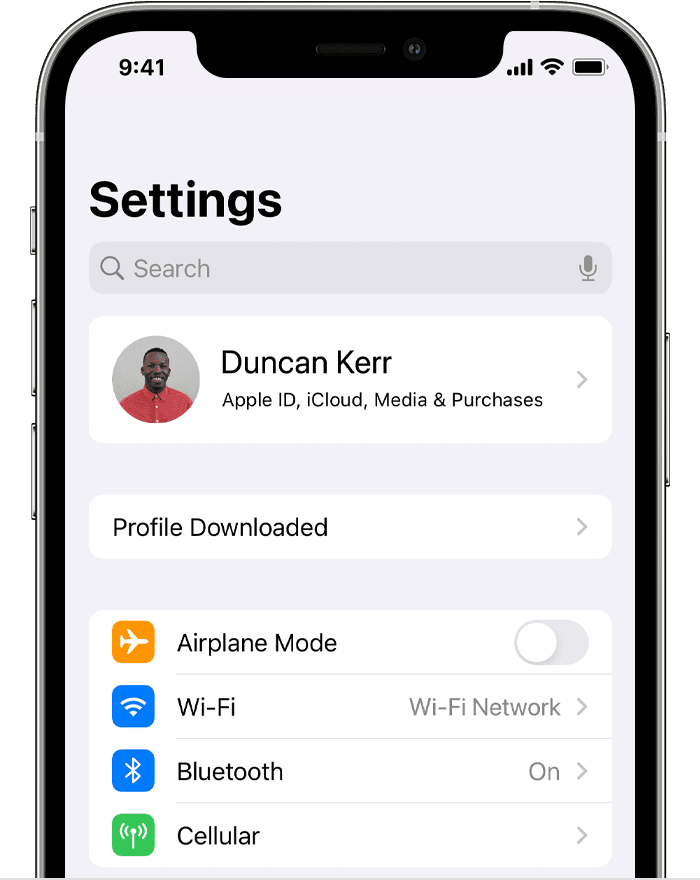
The profile will begin downloading. You should see a message at the top of Safari saying “Profile Downloaded”
This profile is personalised for your device and includes a freshly generated app password. It sets up your email, calendar, and contacts all at once.
You have 8 minutes to complete the next step. If you take longer, the profile is automatically deleted for security reasons and you’ll need to download a new one.
Step 3 — Install the profile
-
Open the Settings app
-
Near the top, tap “Profile Downloaded”
If you don’t see it, go to Settings → General → VPN & Device Management and look for the profile there.
-
Tap Install in the upper-right corner
-
Follow the on-screen instructions — you may be asked to enter your iPhone passcode
Stolen Device Protection note: If you’re away from home, Apple may require you to temporarily disable Stolen Device Protection before installing a profile. Go to Settings → Face ID & Passcode → Stolen Device Protection to toggle it off, install the profile, then re-enable it.
Step 4 — Verify it’s working
Open each of these apps and check that your account appears:
- Mail — your
tobias@tobiaseigen.orginbox should load - Calendar — your calendars from the server should appear
- Contacts — your address book should sync
 You’re all set!
Setting Up on Mac (macOS)
On a Mac, you can use the same profile method — and there’s no browser restriction, so any browser works.
-
Log in to mail.tobiaseigen.org using “Login with SSO”
-
Click the
wrench icon in the top-right corner -
Go to Mailbox → General
-
Click
Email, calendars and contacts [IMAP, SMTP, Cal/CardDAV]to download your profile -
Open the downloaded file — macOS will prompt you to install it
-
Go to System Settings → Privacy & Security → Profiles and follow the prompts to complete installation
See Apple’s full instructions for macOS if needed.
-
Open Mail, Calendar, and Contacts to verify everything is working
Something Stopped Working?
If your mail suddenly stops working on your Apple device (for example, after a server update), the most common fix is to remove the old profile and install a fresh one. This generates a new app password and re-establishes the connection cleanly.
Find and remove an old profile on iPhone/iPad
The profile settings are a little hidden on iOS:
- Open the Settings app
- In the search bar at the top, type “Profile”
- Tap “VPN & Device Management” from the results
- Find the old
mail.tobiaseigen.orgprofile and tap it - Tap “Remove Profile” and confirm
Then follow the setup steps above to download and install a fresh profile.
Find and remove an old profile on Mac
- Open System Settings
- Go to Privacy & Security → Profiles
- Find the old mail profile, select it, and click the – (minus) button to remove it
Then follow the macOS setup steps above to install a fresh profile.
Still stuck? Post in this forum and someone can help you out!
